


How to import your orders from a CSV file
- Login to platform

2. Click on “Orders” Menu
3. Click on “Import” SubMenu
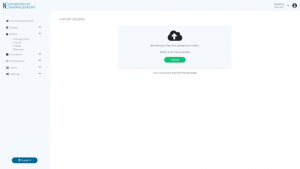
4.Click on “Download here” the CSV file Template
5. The CSV file is downloaded in your “Downloaded file”
6. Open the CSV file
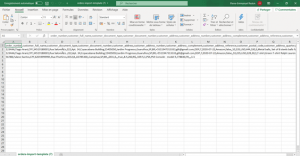
7. Select the first column of data by clicking on the “A”, then organize your data by clicking “Data” and “Convert”
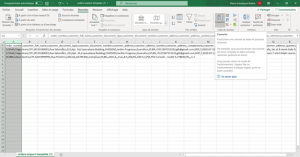
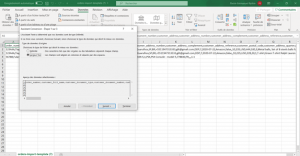
8. Select “Delimited” and “Next”
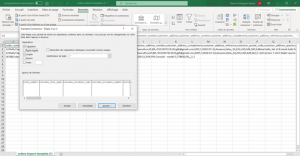
8. Select “Comma” Separator and “Next”
9. Select “Standard” and “Finish”
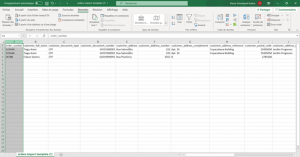
10. Fill the following fields with your orders:
- Order number: The number related to your order number in your online shop
- Full Name: Name & Surname of the customer
- Document Type:
- Select CPF if your customer is a natural person
- or select CNPJ if your customer is a moral person
- Document Number: The number related to the CPF or CNPJ provided by your customer. This document is mandatory when you do business in Brazil.
- Address
- Number
- Complement
- Address Reference
- Postal Code
11. City
12. State
13. Country: Country of residence of your customer
14 Phone indicative: +55 for Brazil
15Phone number
16 Email
17 Incoterm: Taxes and Duties:
- Select DDU (Taxes & duties are paid by the receiver)
- Or select DDP (Taxes and Duties are paid by the sender)
18 Contract ID: Contract name:
- Select Correios Standard = This service is not available on our platform at the moment
- Select Correios Express = 2
19 Estimated delivery date
20 Sales Channel: Write down the sales channel used to make the sale (ex : Amazon, Shopify, etc)
21 Insurance: 1.75% of the order market value (Minimum of $5 USD/ shipment)
- Select Yes if you want to activate our insurance on your shipment
- Or select No otherwise
Observations: Add any information that you will find interesting to share
Freight Value: Price provided by Nobordist in your quotation
Total Value: Total market value of your order + Taxes and Duties
Currency: The currency used for the transaction
SKU
Unit value: Market value of your product in the selected currency
Quantity: Number of product that the customer ordered
Name: the name of your orders
Description: You need to be as specific as possible
Category: HS Code of your products
Country of Origin / Manufactured: Where your product has been produced
Item Width (Cm) with box
Item Height (Cm) with box
Item Length (Cm) with box
Item Weight (kilograms) with box
Once your filed is finish, go back to Nobordist platform, and click on “Upload”
Upload the file “order-import-template” or any other name if you modify it
As you can see you successfully uploaded your file, but some information are missing and must be completed.
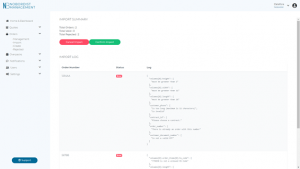
Click on “Confirm Import”
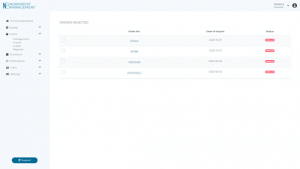
You can see all the orders that needs to be updated
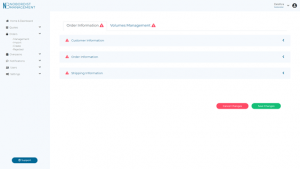
Click on the “Order Number” to update your orders
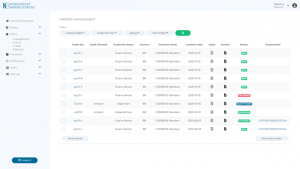
Once they are completed, click on “Save Changes” to complete the process.